How I built this blog using Hugo, Obsidian, AWS, and Claude Code
Like my posts? Found something useful? Saved you some time? Buy me a coffee
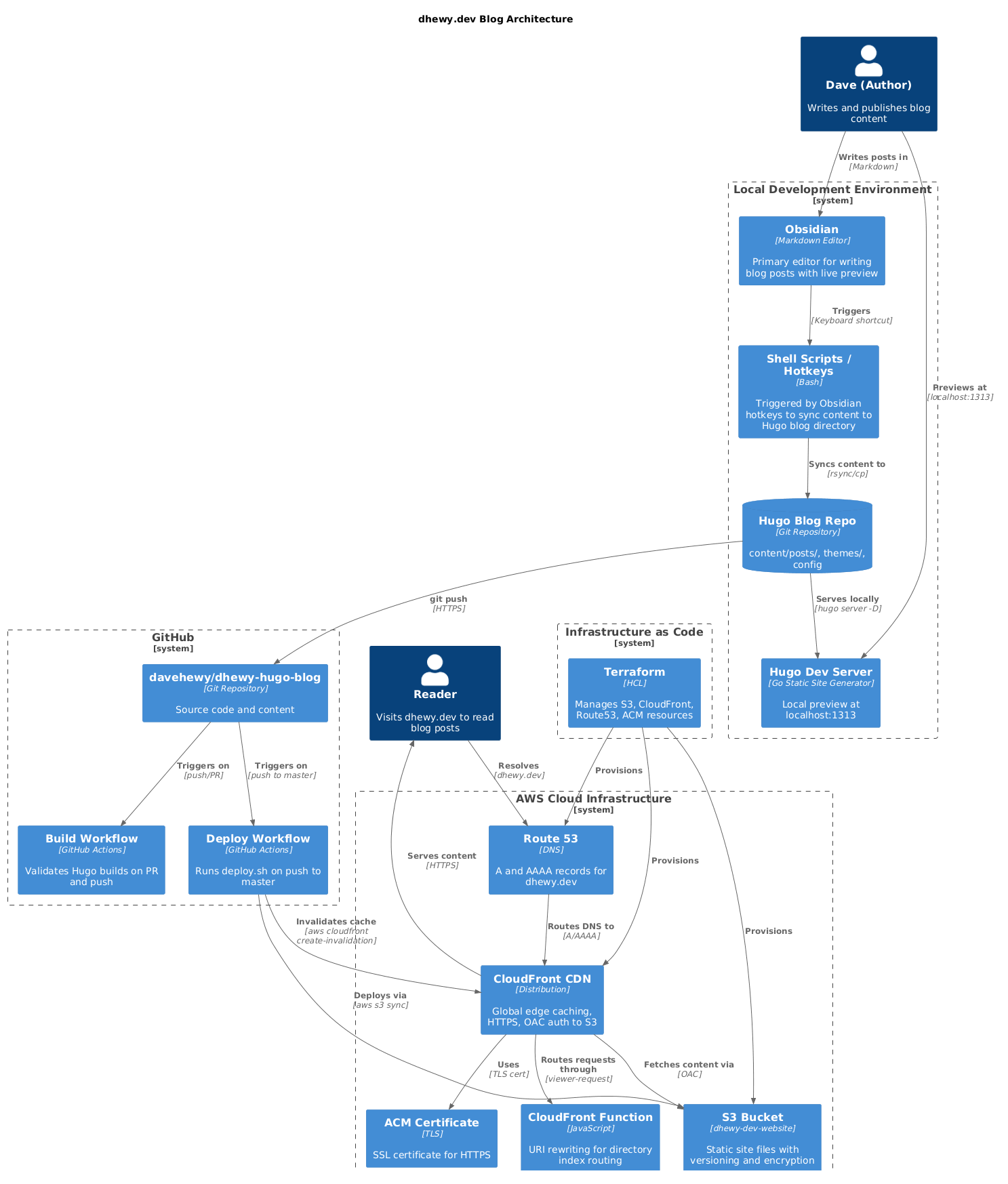
It was about time I updated my blog. This post covers building a new blog from start to finish using Hugo, Obsidian (for post editing, optional), AWS S3+Cloudfront with Terraform, and Github Actions for CI/CD. I hope someone finds it useful.
Installing Hugo
Install Hugo using npm -g install hugo-extended
Alternatively you can install with brew install hugo if on macOS
Create a new Hugo sitehugo new site my-blog
Add or create a theme
In my case I created a new theme from scratch with the help of Claude Code, read the next section for details on that.
Otherwise, you can use an existing theme with something like this
git init
git submodule add https://github.com/theNewDynamic/gohugo-theme-ananke.git themes/ananke
echo "theme = 'ananke'" >> hugo.toml
Once done, you can add a dummy blog post.
hugo new posts/my-first-post.md
Then run the dev server the -D flag includes draft posts (useful in development)
hugo server -D
To build for production
hugo --minify
The output of the build goes to public/ and this is what you deploy to S3/netlify/wherever.
Using Claude Code to create a Tokyonight inspired theme
I used Claude with some very specific prompting to create a Tokyonight inspired Hugo blog theme which is my favourite flavour code editor/terminal theme. It turned out really nicely! With a bit of back and forth and in <1.5 hours I had something which looked pretty good. You are now reading an article on it :)
I would encourage others to try something similar if you have a colour scheme in mind already it will likely do a pretty good job of things.
Obsidian for editing blog posts
I like to type in Obsidian, I find the setup extremely nice. So I set out to keep the experience of writing markdown style blogs for my Hugo blog in Obsidian.
Create three folders in Obsidian:
- Blog (we will use this to store Hugo compatible markdown files correlating to each blog post)
- Blog Images (we will use this to store static assets such as images commonly embedded in a blog post)
- Templates (we are going to use this to house all of our Obsidian templates)
Once done. Head to Obsidian -> Settings -> Community Plugins.
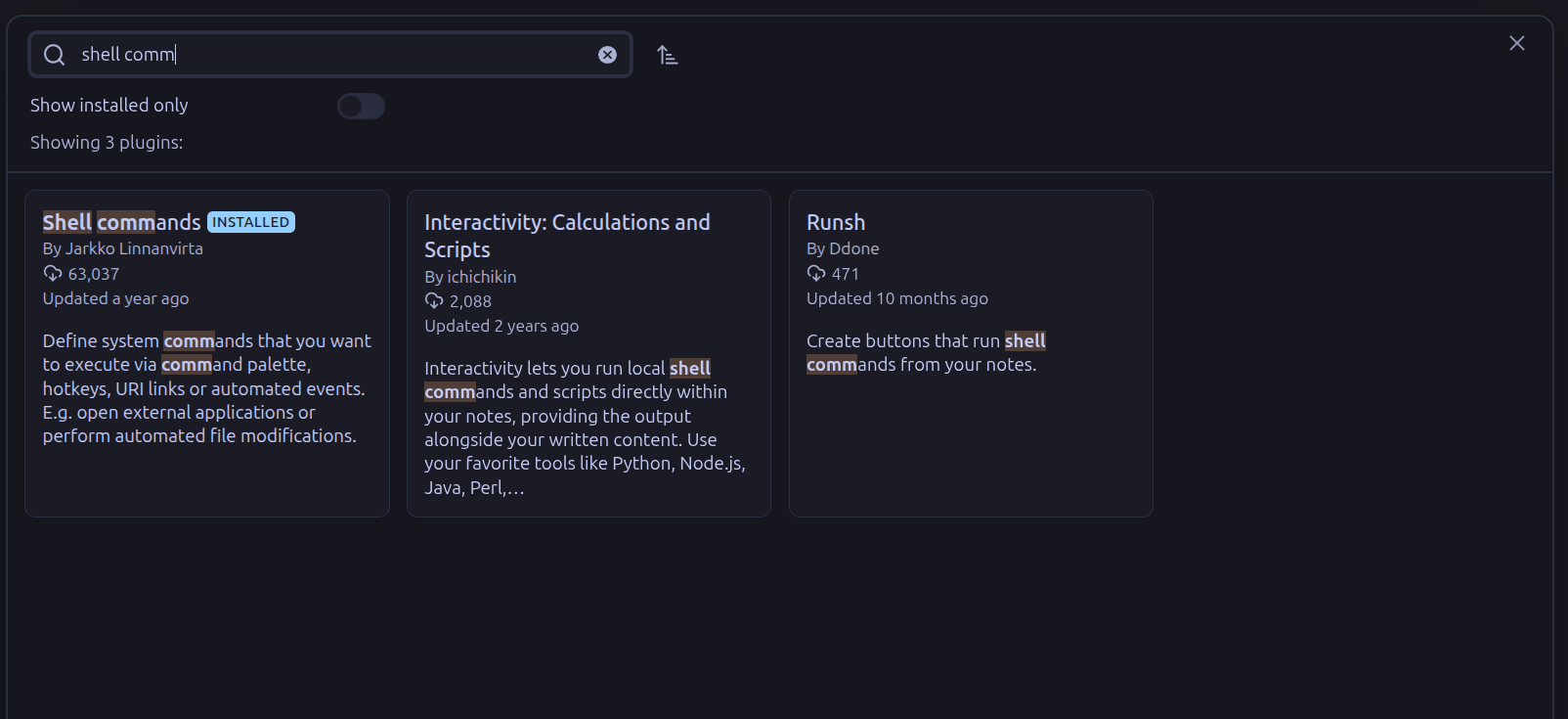
Install + Enable the Obsidian Shell Commands plugin.
Hugo Obsidian Template
Obsidian has a notion of templates. We can use this to create a ready to blog, Hugo frontmatter template.
In Obsidian locate the templates folder, right click, and select new note. Enter a title like hugo-blog-template and enter the below contents.
---
title: "{{Title}}"
description:
date: "{{date:YYYY-MM-DD}}T{{time:HH:mm:ss}}+00:00"
draft: true
---


**If you enjoyed this article consider buying me a coffee (https://buymeacoffee.com/davehewy)**
Once done, head to Obsidian configuration and click “Templates”, then set the “Template folder location” setting to templates.
Shell commands
I used Obsidians Shell Commands community plugin to create a couple of shell commands for syncing my blog posts with my personal blog directory (on disk).
First of all head to Obsidian settings -> Community Plugins -> Browse -> Search for Shell Commands community plugin and install+enable it.
Once installed click the plugin, and set your environment preferences (if you have any), shell (zsh,bash etc).
Once set we can begin entering our sync command
rsync -av /home/dave/to/my/obsidian/vault /home/dave/path/to/my/blog/content/posts
I specifically only sync to posts, since I have very few other content pages, and don’t need to regularly edit them.
HotKey Setup
Click the + sign next to your newly created command and set a HotKey for it. I used ctrl + 0 no particular reason, just something free, and I could easily remember it. This means that at any time in Obsidian I hit that HotKey my machine will use rsync to sync the markdown files under Blog folder in Obsidian, with my ~/path/to/my/blog/content/posts directory on disk. If you are already running the dev server with hugo server -D it will hot reload and the sync’d files will be immediately visible in the web ui for your blog.
I added an alias for this command as hugo-personal-blog-sync-posts
Sync Blog Post Images
I then setup my blog post images syncing in a very similar fashion. I start by creating another command in Obsidian Shell Commands, this time for syncing the blog post images into the correct location for Hugo static assets which is static/images.
rsync -av /home/dave/path/to/my/obsidian/vault/Blog\ Post\ Images/ /home/dave/path/to/my/blog/static/images
HotKey Setup
Click the + sign next to the newly created image sync command and set a HotKey for it. I used Ctrl + Meta + Alt + I simply because it was free, and something I won’t accidentally hit.
Then I can see and reference the images in Obsidian, keeping my editing experience within Obsidian. To reference an image in an Obsidian blog post, I just use  It’s still a bit clunky since Obsidian will attempt to read the image but will not find it. However, it does not break anything. I will revisit this later, in case there is a clever work around that I can come up with when syncing. I think, a modification to the sync command that first replaces the references to images in the content post to the expected Hugo location will work nice. I.E. replacing any markdown image link with
 /images/${filename} would work.
Git commit & push command
To publish my changes to the web, I setup another command to git add, git commit -m “update blog”, and git push. This push triggers the Github Workflows responsible for deploying my website, and keeps things in VSC up-to-date. I use this much more sparingly, and not all the time. Depending on whether the queued changes are really just blog content, and whether or not there are any posts ready for publishing.
I’m not too precious about the commit history being pleasant for my personal blog, so I took that one on the chin for speed. I also am happy to push directly to master when using this function for brevity.
I added another shell command as follows.
cd /home/dave/path/to/blog && \
git add . \
git commit -m "update blog" \
git push origin master
HotKey Setup
I then set the HotKey for this to Ctrl + Meta + Shift + D where I’ve been much more deliberate about not accidentally being able to hit this keystroke.
Deploying to Cloudfront
Terraform
I used Terraform to quickly create the AWS resources required to build this Hugo site and host it on AWS S3 + Cloudfront, with AWS Route53 and Certificate Manager components.
Run mkdir terraform && cd terraform then copy the below main.tf into the dir.
Ensure you have AWS credentials available in the current shell, and run terraform init followed by terraform plan, when happy with the plan run terraform apply to deploy the AWS cloud infrastructure components.
terraform {
  required_version = ">= 1.0"

  required_providers {
    aws = {
      source  = "hashicorp/aws"
      version = "~> 5.0"
    }
  }
}

provider "aws" {
  region  = "us-east-1"
  profile = "personal"
}

locals {
  domain_name = "dhewy.dev"
  bucket_name = "example-blog-website"
}

# S3 bucket for website content
resource "aws_s3_bucket" "website" {
  bucket = local.bucket_name
}

resource "aws_s3_bucket_versioning" "website" {
  bucket = aws_s3_bucket.website.id
  versioning_configuration {
    status = "Enabled"
  }
}

resource "aws_s3_bucket_server_side_encryption_configuration" "website" {
  bucket = aws_s3_bucket.website.id

  rule {
    apply_server_side_encryption_by_default {
      sse_algorithm = "AES256"
    }
  }
}

# Block all public access to the bucket
resource "aws_s3_bucket_public_access_block" "website" {
  bucket = aws_s3_bucket.website.id

  block_public_acls       = true
  block_public_policy     = true
  ignore_public_acls      = true
  restrict_public_buckets = true
}

# CloudFront Origin Access Control
resource "aws_cloudfront_origin_access_control" "website" {
  name                              = "${local.bucket_name}-oac"
  description                       = "OAC for ${local.domain_name}"
  origin_access_control_origin_type = "s3"
  signing_behavior                  = "always"
  signing_protocol                  = "sigv4"
}

# CloudFront Function to handle directory index files
resource "aws_cloudfront_function" "rewrite_uri" {
  name    = "rewrite-uri-to-index-html"
  runtime = "cloudfront-js-2.0"
  publish = true
  code    = <<-EOF
    function handler(event) {
      var request = event.request;
      var uri = request.uri;

      // If URI ends with '/', append index.html
      if (uri.endsWith('/')) {
        request.uri += 'index.html';
      }
      // If URI doesn't have a file extension, append /index.html
      else if (!uri.includes('.')) {
        request.uri += '/index.html';
      }

      return request;
    }
  EOF
}

# CloudFront distribution
resource "aws_cloudfront_distribution" "website" {
  enabled             = true
  is_ipv6_enabled     = true
  default_root_object = "index.html"
  aliases             = [local.domain_name]
  price_class         = "PriceClass_100"

  origin {
    domain_name              = aws_s3_bucket.website.bucket_regional_domain_name
    origin_id                = "S3-${local.bucket_name}"
    origin_access_control_id = aws_cloudfront_origin_access_control.website.id
  }

  default_cache_behavior {
    allowed_methods        = ["GET", "HEAD", "OPTIONS"]
    cached_methods         = ["GET", "HEAD"]
    target_origin_id       = "S3-${local.bucket_name}"
    viewer_protocol_policy = "redirect-to-https"
    compress               = true

    forwarded_values {
      query_string = false
      cookies {
        forward = "none"
      }
    }

    min_ttl     = 0
    default_ttl = 3600
    max_ttl     = 86400

    function_association {
      event_type   = "viewer-request"
      function_arn = aws_cloudfront_function.rewrite_uri.arn
    }
  }

  # Custom error response for SPA-like behavior (optional, good for 404s)
  custom_error_response {
    error_code         = 404
    response_code      = 404
    response_page_path = "/404.html"
  }

  custom_error_response {
    error_code         = 403
    response_code      = 404
    response_page_path = "/404.html"
  }

  restrictions {
    geo_restriction {
      restriction_type = "none"
    }
  }

  viewer_certificate {
    acm_certificate_arn      = "arn:aws:acm:us-east-1:288776046308:certificate/2d85d671-17e0-4400-a1d3-4a4564e058e8"
    ssl_support_method       = "sni-only"
    minimum_protocol_version = "TLSv1.2_2021"
  }
}

# S3 bucket policy to allow CloudFront access
resource "aws_s3_bucket_policy" "website" {
  bucket = aws_s3_bucket.website.id

  policy = jsonencode({
    Version = "2012-10-17"
    Statement = [
      {
        Sid       = "AllowCloudFrontServicePrincipal"
        Effect    = "Allow"
        Principal = {
          Service = "cloudfront.amazonaws.com"
        }
        Action   = "s3:GetObject"
        Resource = "${aws_s3_bucket.website.arn}/*"
        Condition = {
          StringEquals = {
            "AWS:SourceArn" = aws_cloudfront_distribution.website.arn
          }
        }
      }
    ]
  })
}

# Route53 - Look up existing hosted zone
data "aws_route53_zone" "main" {
  name         = local.domain_name
  private_zone = false
}

# Route53 A record pointing to CloudFront
resource "aws_route53_record" "website" {
  zone_id = data.aws_route53_zone.main.zone_id
  name    = local.domain_name
  type    = "A"

  alias {
    name                   = aws_cloudfront_distribution.website.domain_name
    zone_id                = aws_cloudfront_distribution.website.hosted_zone_id
    evaluate_target_health = false
  }
}

# Route53 AAAA record for IPv6
resource "aws_route53_record" "website_ipv6" {
  zone_id = data.aws_route53_zone.main.zone_id
  name    = local.domain_name
  type    = "AAAA"

  alias {
    name                   = aws_cloudfront_distribution.website.domain_name
    zone_id                = aws_cloudfront_distribution.website.hosted_zone_id
    evaluate_target_health = false
  }
}
Quick deploy.sh script to wrap up deploying the new Hugo site
#!/bin/bash
set -e

# Colors for output
RED='\033[0;31m'
GREEN='\033[0;32m'
YELLOW='\033[1;33m'
NC='\033[0m' # No Color

# Configuration
S3_BUCKET="${S3_BUCKET:-dhewy-dev-website}"
CLOUDFRONT_DISTRIBUTION_ID="${CLOUDFRONT_DISTRIBUTION_ID:-}"

# Only use profile flag if AWS credentials aren't set via environment
if [ -z "$AWS_ACCESS_KEY_ID" ]; then
  AWS_PROFILE_FLAG="--profile ${AWS_PROFILE:-personal}"
else
  AWS_PROFILE_FLAG=""
fi

# Try to get CloudFront distribution ID from Terraform if not set
if [ -z "$CLOUDFRONT_DISTRIBUTION_ID" ] && [ -d "terraform" ]; then
  CLOUDFRONT_DISTRIBUTION_ID=$(cd terraform && terraform output -raw cloudfront_distribution_id 2>/dev/null || echo "")
fi

if [ -z "$CLOUDFRONT_DISTRIBUTION_ID" ]; then
  echo -e "${RED}Error: CLOUDFRONT_DISTRIBUTION_ID not set and couldn't get it from Terraform${NC}"
  echo "Either set CLOUDFRONT_DISTRIBUTION_ID env var or run 'terraform apply' first"
  exit 1
fi

echo -e "${YELLOW}Building Hugo site...${NC}"
hugo --minify

echo -e "${YELLOW}Syncing to S3...${NC}"
aws s3 sync public/ "s3://${S3_BUCKET}/" \
  --delete \
  $AWS_PROFILE_FLAG \
  --cache-control "max-age=31536000" \
  --exclude "*.html" \
  --exclude "*.xml" \
  --exclude "*.json"

# HTML, XML, JSON files with shorter cache
aws s3 sync public/ "s3://${S3_BUCKET}/" \
  --delete \
  $AWS_PROFILE_FLAG \
  --cache-control "max-age=3600" \
  --exclude "*" \
  --include "*.html" \
  --include "*.xml" \
  --include "*.json"

echo -e "${YELLOW}Invalidating CloudFront cache...${NC}"
aws cloudfront create-invalidation \
  --distribution-id "${CLOUDFRONT_DISTRIBUTION_ID}" \
  --paths "/*" \
  $AWS_PROFILE_FLAG

echo -e "${GREEN}Deployment complete!${NC}"
Github Actions
I created two very simple Github action workflows:
- CI job to validate that no pull-request is breaking the ability to build Hugo
- Deployment job to deploy Hugo built code src to AWS S3 and invalidate the AWS Cloudfront cache.
CI Job to validate Hugo build
This will run on all pushes to master, or all pull-requests targeting the master branch.
name: Build

on:
  push:
    branches: [master]
  pull_request:
    branches: [master]

jobs:
  build:
    runs-on: ubuntu-latest
    steps:
      - uses: actions/checkout@v4
        with:
          submodules: recursive

      - name: Setup Hugo
        uses: peaceiris/actions-hugo@v3
        with:
          hugo-version: 'latest'
          extended: true

      - name: Build
        run: hugo --minify
Deploy to AWS S3+Cloudfront Job
You will need to create the following secrets on your repository:
AWS_ACCESS_KEY_ID: your AWS access key ID AWS_SECRET_ACCESS_KEY: your AWS secret access key CLOUDFRONT_DISTRIBUTION_ID: your cloudfront distribution ID target.
name: Deploy

on:
  push:
    branches: [master]

jobs:
  deploy:
    runs-on: ubuntu-latest
    steps:
      - uses: actions/checkout@v4
        with:
          submodules: recursive

      - name: Setup Hugo
        uses: peaceiris/actions-hugo@v3
        with:
          hugo-version: 'latest'
          extended: true

      - name: Configure AWS credentials
        uses: aws-actions/configure-aws-credentials@v4
        with:
          aws-access-key-id: ${{ secrets.AWS_ACCESS_KEY_ID }}
          aws-secret-access-key: ${{ secrets.AWS_SECRET_ACCESS_KEY }}
          aws-region: us-east-1

      - name: Deploy
        run: ./deploy.sh
        env:
          CLOUDFRONT_DISTRIBUTION_ID: ${{ secrets.CLOUDFRONT_DISTRIBUTION_ID }}
That’s it. Now when you push to your repository, your blog will be automatically updated, draft posts will be hidden, and new published content will be deployed and visible.